
How to Check In Guests with Your Phone or iPad (Complete Guide)
Replace the printed guest list: set up the Eventor app on iPhone, iPad or Android, search or scan guests at the door, handle plus-ones and walk-ins, and export who actually came.
Eventor team4 min read
A printed guest list works until the third person in the queue says “it should be under my company’s name”. Then someone flips pages, the line grows, and the first impression of your event is a wait.
A phone-based check-in fixes this with three things: search that forgives typos, a list that is identical on every device, and a QR scanner for the guests who have a code. This guide walks through exactly how to run the door with the Eventor app, from setup the day before to the export the morning after.
What you need
- An Eventor account and an event with guests imported at events.eventor.app. New here? Start with How to import an Excel guest list.
- The Eventor app on each door device: iPhone and iPad (iOS 15 or later) or Android phones and tablets (Android 7 or later).
- Enough device slots on your event: 1 on a free event, 3 on Bronze, 10 on Silver, 30 on Gold. See How many devices can scan at once?
The day before: set up the devices
- Install the app on every phone or tablet that will be at the door and sign in. Use your own account, or invite your door staff as team members with the Guest check-in only role so they cannot edit or export the list.
- Open the event once on each device while online. This downloads the guest list (and the photos, if you use them) so the device can keep working if the venue Wi-Fi drops later.
- Check the start time. The check-in controls open shortly before the event's start time, so set the start to when doors open, not when the show starts.
- Charge everything, disable auto-lock in the phone settings, and bring one power bank per device. A four-hour door with the screen on drains a phone.
iPad or phone? Both run the same app. iPads are easier for a seated hostess and show more of the list; phones are better for roaming staff and for scanning QR codes in a moving queue.
At the door: three ways to check a guest in
1. Search and tap
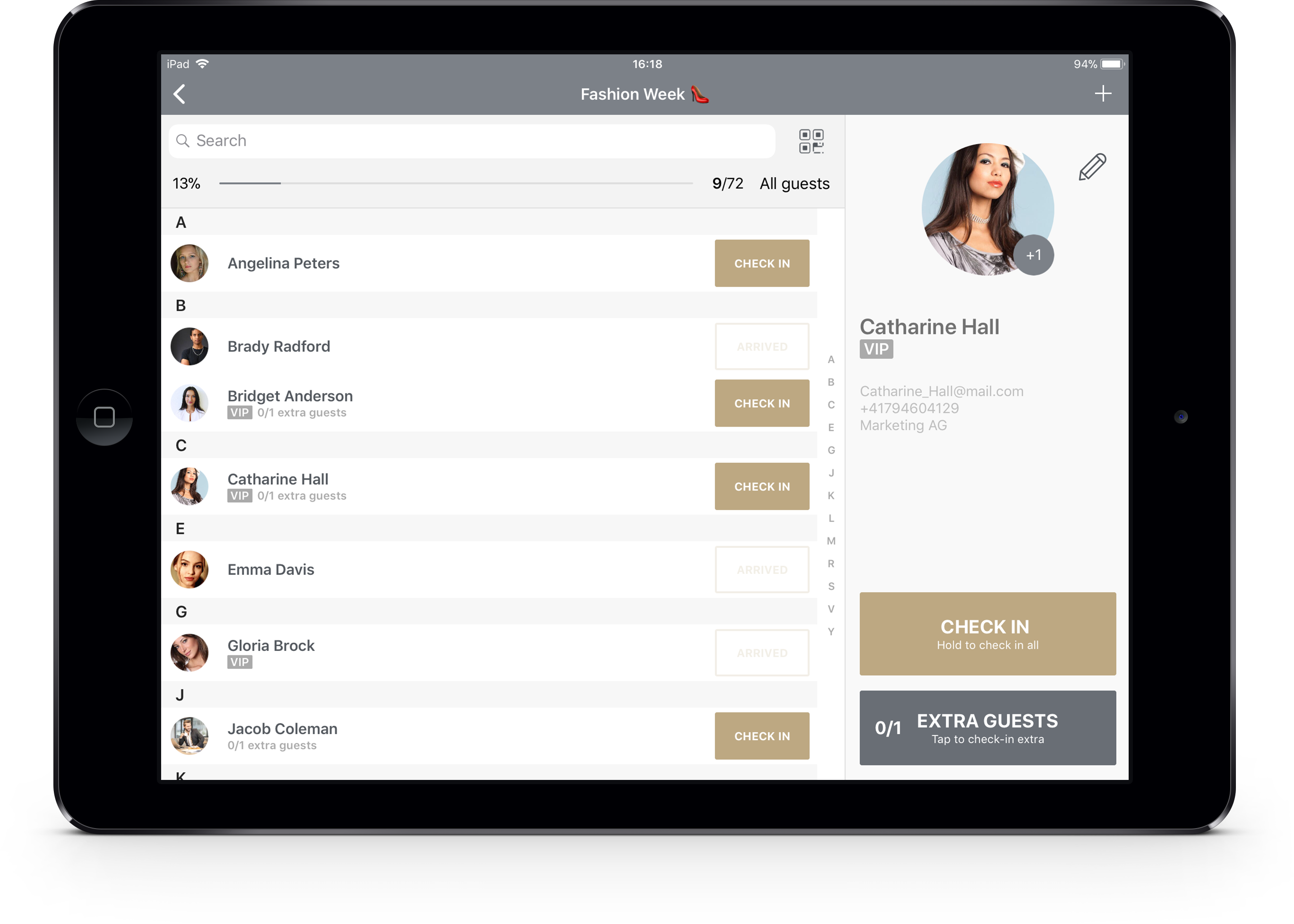
Type any part of the name. Search is fuzzy, so “cathrine hal” finds Catharine Hall, and it also looks at company, e-mail, phone and notes. Tap Check in. The button turns to Arrived, the guest disappears from the Yet to arrive filter on every device, and the progress bar at the top moves.
Made a mistake? Tap the guest again and reset the check-in.
2. Scan a QR code
Tap the scanner icon next to the search field and point the camera at the guest’s code, on their phone or on a printed ticket. Under a second later the screen shows the guest’s name, VIP flag and plus-ones, and they are checked in. A code scanned a second time shows already checked in.
Guests receive their codes from you before the event. The fastest way is an e-mail campaign: Sending Eventor QR codes with Mailchimp. If you sold tickets elsewhere, you can scan those tickets instead: Import Eventbrite attendees into Eventor.
3. Long-press for the whole party
A guest with plus-ones shows 0/2 extra guests under their name. Long-press the check-in button to check in the guest together with all their extras in one go, or tap and use the counter to check in only the people who actually arrived (2 of 4 now, the rest later). Counters stay accurate either way.
Handling the usual door situations
“I’m on the list under my colleague’s name.” Search the colleague, open their guest card, and add an extra guest. Both are counted.
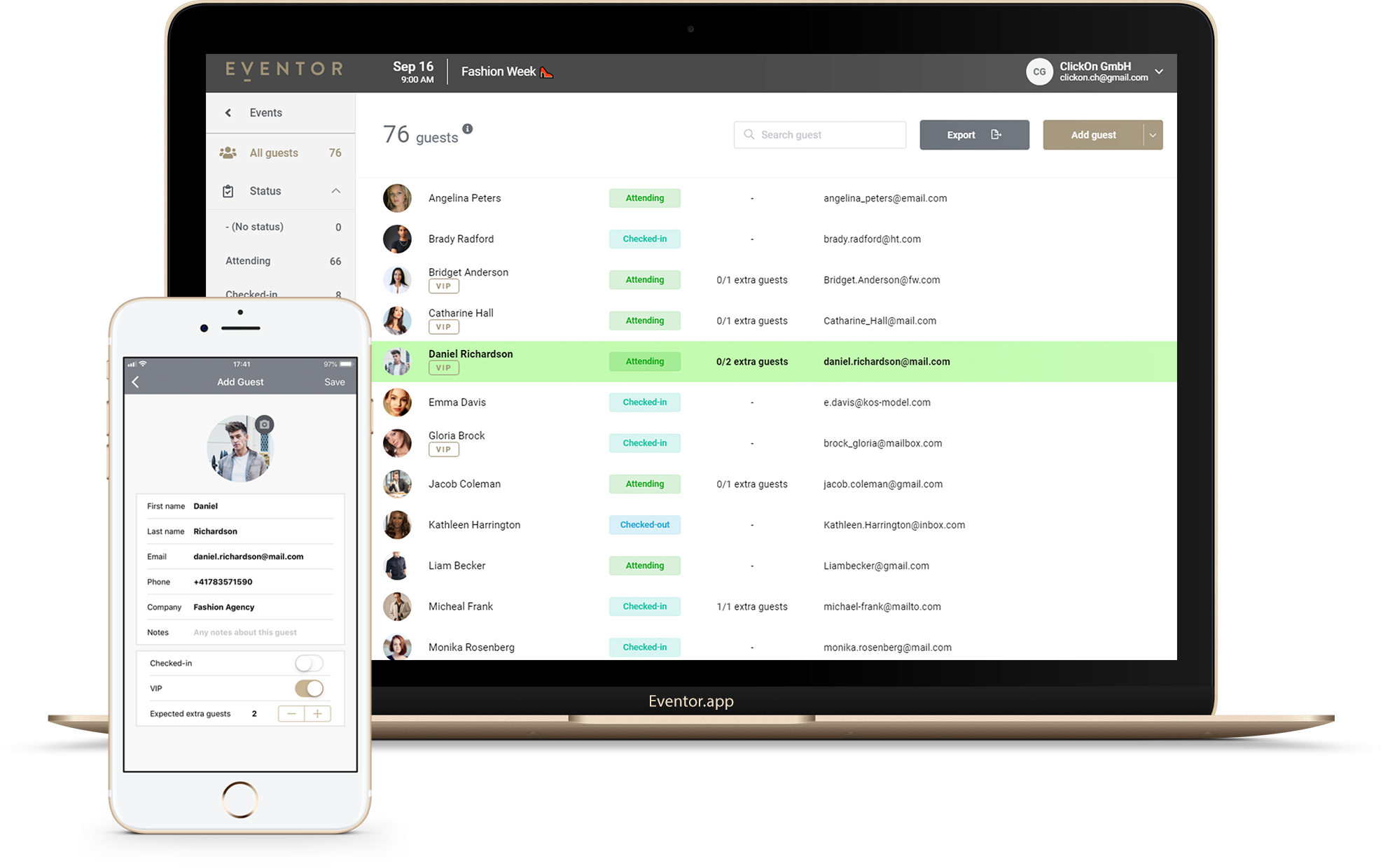
Walk-ins. Tap + in the top corner to add a new guest on the spot with name, company and a note. They are added to the shared list immediately, so a second entrance sees them too.
VIP arrivals. VIPs carry a gold VIP tag in the list and in the scan confirmation. Turn on push notifications and the event owner’s phone buzzes when a VIP is checked in.
Someone leaves and comes back. Switch the app to check-out mode to record departures with a timestamp. The guest moves to the Checked-out filter and can be checked in again later. Useful for capacity limits and multi-session days.
The Wi-Fi dies. Keep going. Check-ins are stored on the device and synchronized automatically when the connection returns. Details in Does event check-in work offline?
Watching the numbers
The bar at the top of the list shows arrivals in real time: 46/72 and a percentage, with VIPs and plus-ones counted separately in the overview. The same numbers are in the web dashboard, so the organizer in the back office sees when the room is full without calling the door.
Filters help during the rush: Yet to arrive for the hostess, Arrived for the host who wants to know if the keynote speaker is in, VIP for the person doing escorts.
After the event: who actually came
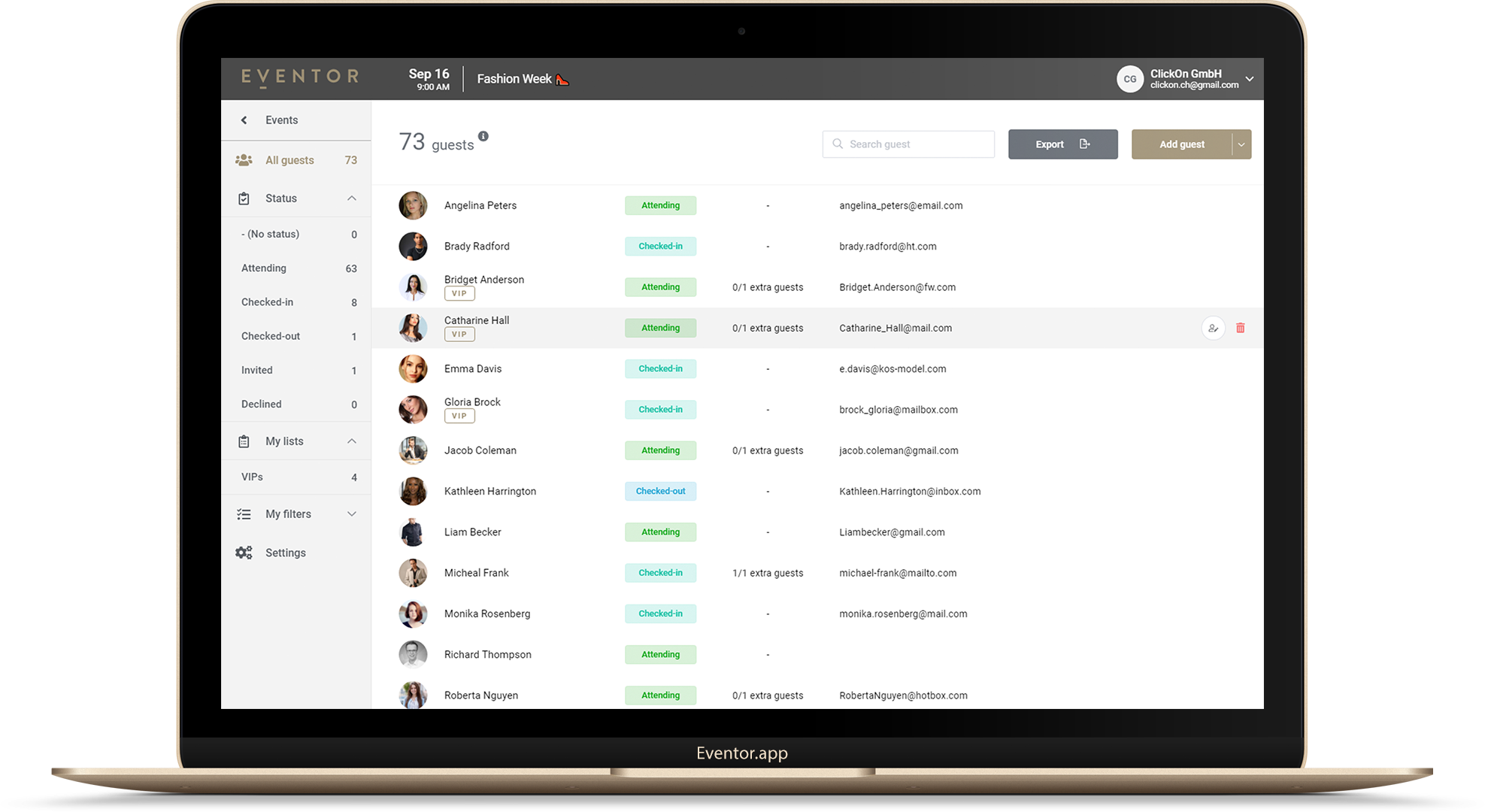
Open the event on events.eventor.app, choose the Checked-in filter and press Export. You get an Excel or CSV file with check-in and check-out times per guest, ready for your CRM, your client report or next year’s invitation list. Events stay available for export after they are over.
Quick checklist
- [ ] Guests imported, plus-ones and VIPs marked
- [ ] Devices installed, signed in, event opened once while online
- [ ] Door staff invited with the check-in-only role
- [ ] Event start time = doors-open time
- [ ] QR codes sent (optional)
- [ ] Chargers and power banks packed
- [ ] Export the checked-in list the next morning
Eventor is free for events up to 30 guests, with every feature above included. Create a free event and try the flow with your own team before the big night.
Try it yourself
Run your next check-in with Eventor
Free for up to 30 guests. Import Excel, invite your team, scan QR codes on iPhone, iPad and Android.
Keep reading
 Guides
How Many Devices Can Scan at Once? Running Multi-Device Check-in with a Team
Two entrances, five hostesses, one guest list. How many phones and iPads can check in guests at the same time in Eventor, how to invite door staff safely, and how to lay out the entrance.
· 4 min read
 Guides
How to Import an Excel or CSV Guest List into Eventor (and Fix the 5 Things That Break It)
Drag-and-drop import, automatic column matching, the two mandatory columns, adding guests later, replacing a whole list, and the five spreadsheet mistakes that cause failed imports.
· 4 min read
 Guides
Offline Check-in Explained: How Sync Works, What Breaks It, and How to Prepare Your Devices
The Eventor apps keep checking guests in when the venue connection drops. That only works if every device was synced before the doors opened. This is how offline sync works, the two mistakes that lose data, and the checklist that prevents them.
· 7 min read