
Offline Check-in Explained: How Sync Works, What Breaks It, and How to Prepare Your Devices
The Eventor apps keep checking guests in when the venue connection drops. That only works if every device was synced before the doors opened. This is how offline sync works, the two mistakes that lose data, and the checklist that prevents them.
Eventor teamUpdated 18 September 20267 min read

Basements, conference centres with 2,000 phones on one access point, tents in a field, a cruise ship, a mountain hut: the venue network is the thing most likely to fail at the exact moment your guests arrive. Offline check-in is the feature that saves the evening when it does, and it is also the feature people misunderstand most often. This article explains what happens on the device, what the app cannot do for you, and the routine that makes it bulletproof.
The short version. The iPhone, iPad and Android apps keep a local copy of the guest list and record check-ins on the device. When the connection drops they keep working; when it returns they sync automatically. Two conditions: every device must have opened the event while online before the doors open, and nobody may change or replace the guest list on the web while devices are offline and checking in. The web dashboard on a computer has no offline mode at all.
How offline check-in works
Each device keeps a local copy of the event: the guests, their statuses, plus-one counts and, if you use them, guest photos. Every tap on the check-in button is written to that local copy first and then pushed to the cloud. When the connection is flaky the app keeps a queue of unsent changes and retries in the background. You do not press anything.
Because the guest list is on the device, QR scanning works offline too. The code contains only the guest ID; the app looks it up in the local list, marks the guest as arrived and shows the green screen exactly as it would online.
The Android app shows a single, non-blocking offline notice instead of an alert on every network flap; the iOS app shows a short banner. Either way the check-in button keeps working. Check-in times are recorded at the moment of the tap, not the moment of sync, so your export the next morning has the real arrival times.
What a device does not know while it is offline
This is the part that matters. An offline device cannot receive anything from the cloud until it reconnects:
- Check-ins made on other devices. Two entrances both offline do not see each other’s arrivals until one reconnects. A guest could, in theory, be admitted at both doors during that window.
- Guests added on the web. A late RSVP imported in the dashboard at 19:05 is invisible to a phone that went offline at 19:00.
- Changes to guests. A corrected name, a VIP flag or an extra plus-one set in the dashboard does not appear on the offline device.
- Deleted or replaced lists. If the list is deleted or re-imported on the web, the offline device still shows the old list and keeps checking in guests that no longer exist in the cloud.
The last point is the dangerous one.
The two mistakes that lose data
Mistake 1: a device that never synced the event
A rental iPad arrives in the morning. Someone installs the app and signs in, but nobody opens the event while there is still a connection. At the door the Wi-Fi is down, the hostess opens the app and sees an empty event or an error. There is nothing to work with offline because nothing was ever downloaded. The device needs to open the event once while online, and it should do so after the final guest import, not the day before it.
Mistake 2: replacing the list while devices are offline and checking in
This is the scenario we get support tickets about after big events, and it is the one to burn into your routine:
- Doors open. The venue Wi-Fi drops. Three iPads keep checking in guests offline. So far, everything is fine.
- Back at the desk, someone imports the “final final” list with the Delete the existing guests option, or deletes and re-imports guests to fix a spelling mistake.
- The cloud now holds a new list with new guest IDs. The offline iPads still hold the old list and continue to check in the old IDs.
- The iPads reconnect. Their queued check-ins refer to guests that no longer exist. Those check-ins cannot be attached to anything and are lost. Your export shows the new list with nobody arrived.
The same thing happens on a smaller scale when you delete and re-import a single guest: the offline device’s check-in for the old copy is orphaned, and the new copy shows as not arrived.
Rule: once the doors are open, do not delete, re-import or replace guests on the web. Add new guests, edit names and fields, but never remove and re-create. If you must fix something drastic, make sure every device is online first, do the change, and confirm every device shows the new list before anyone scans again.
Before the event: the sync routine
- Finish the guest list first. Do the last import in the dashboard, then stop editing. Late additions are fine later; replacements are not.
- Open the event on every device while online, ideally at the venue, one hour before doors. Scroll the list once so the photos load. This downloads the current list to each device.
- Check the counter on each device. Every phone and tablet should show the same total, for example 0/72. A device with a different total has not synced; give it a connection and reopen the event.
- Prefer mobile data over venue Wi-Fi. Turn off congested venue Wi-Fi on the door devices and use 4G/5G. A phone with two bars of signal is more reliable than a saturated access point.
- Bring a hotspot. One phone with a good data plan, tethered to the door tablets, has saved more events than any other piece of kit. It turns "offline for two hours" into "offline for two minutes".
- Send QR codes in advance. Scanning is faster than searching, and it works fully offline. See Sending QR codes with Mailchimp.
During an outage
- Keep checking guests in as usual. The counter on each device reflects that device’s own view; it will reconcile on reconnect.
- Walk-ins added on a device are kept locally and uploaded with the queue. Add them on the device, not in the dashboard.
- Do not sign out, delete the app or “reinstall to fix the Wi-Fi”. That discards the local queue and the unsent check-ins with it. Toggling airplane mode for ten seconds is the safe equivalent of a restart.
- Do not touch the guest list on the web (see the rule above). If the back office needs to add a guest, add it; the offline devices will pick it up when they reconnect.
- If two entrances are both offline, tell the teams to ask “have you already been through the other door?” for VIPs. The already checked in message returns as soon as either device reconnects.
After the connection returns
Within a few seconds every device shows the same numbers again and the dashboard catches up. Check-in and check-out times keep the real timestamps. If a device stays behind, pull the list down to refresh or reopen the event; if it still disagrees, it never synced before going offline, and its check-ins were made against a stale list. Write to support@eventor.app with the event name before you do anything else; we can often reconcile from the server logs.
Computers, the web dashboard and offline
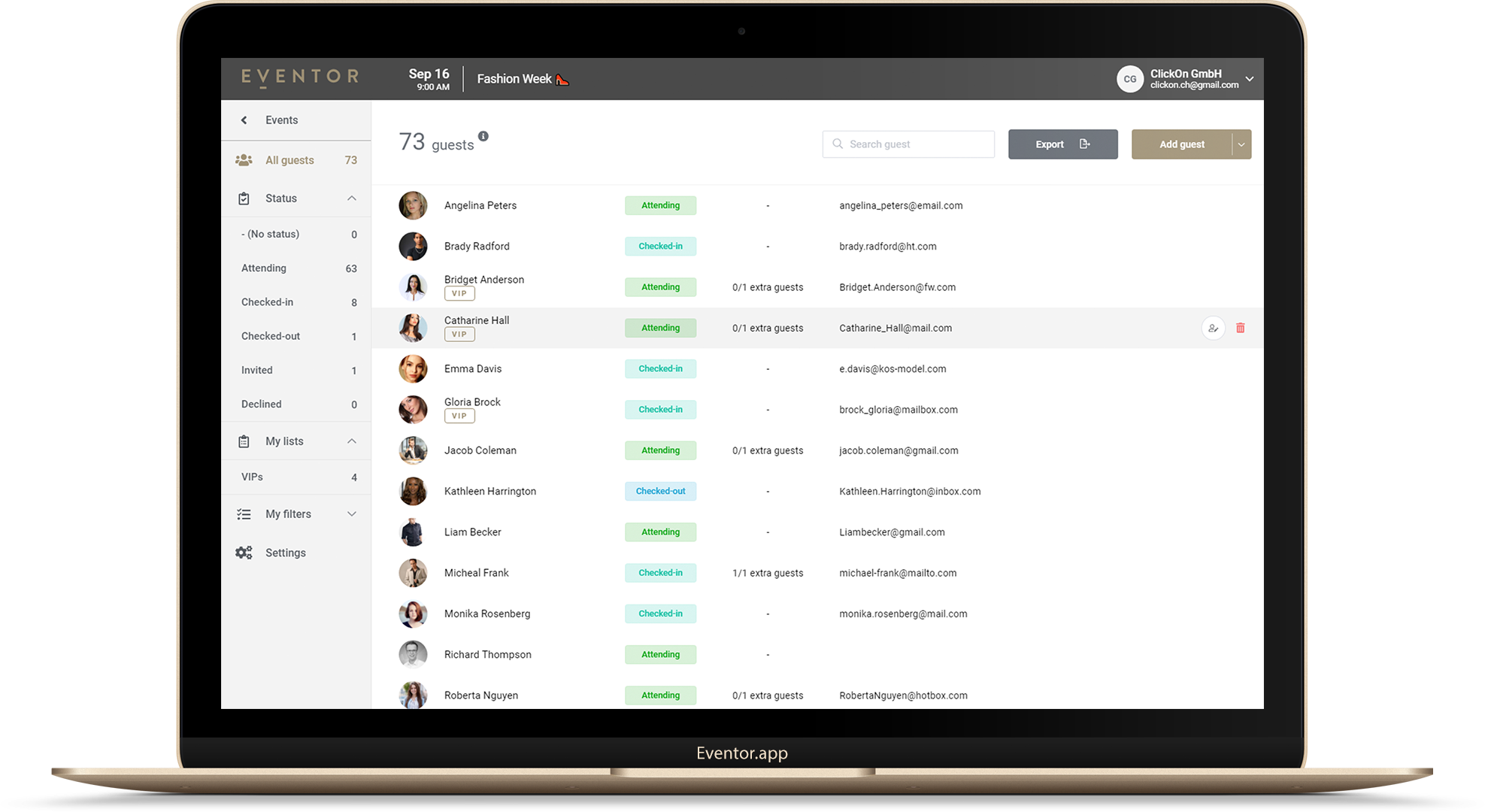
The web dashboard at events.eventor.app is a website. It needs a connection for every action and has no offline queue. A registration desk on a MacBook, iMac or Windows laptop stops the moment the network does, and it cannot scan QR codes at all because there is no camera scanner in the browser.
That makes the right setup for a desk very simple: run the web dashboard on the computer for searching, imports and exports, and keep at least one iPhone, iPad or Android device next to it, opened on the event while online, for scanning and as the offline fallback. Our device catalog lists what each device can and cannot do.
Frequently asked questions
How long can a device stay offline? As long as the battery lasts. Changes are stored on the device until they can be sent.
What if the phone dies before it syncs? The unsent check-ins are still on the device. Charge it, open the app and they upload. Only deleting the app or signing out loses them.
Can I import guests during the event? Yes, adding is safe. Online devices see them immediately, offline devices when they reconnect. What is not safe is deleting or replacing.
We have no data at all for the whole event (ship, mine, mountain hut). Open the event on each device while you still have a connection, run the door fully offline, and connect any one device afterwards. Everything syncs. Tell us in advance and we will double-check your setup with you.
Does the free plan include offline mode? Yes. Offline check-in works on every plan and every supported device: see pricing and how many devices can scan at once.
Not sure about your venue? Create a free event, open it on two phones, switch one to airplane mode and try the whole routine before the real night.
Try it yourself
Run your next check-in with Eventor
Free for up to 30 guests. Import Excel, invite your team, scan QR codes on iPhone, iPad and Android.
Keep reading
 Guides
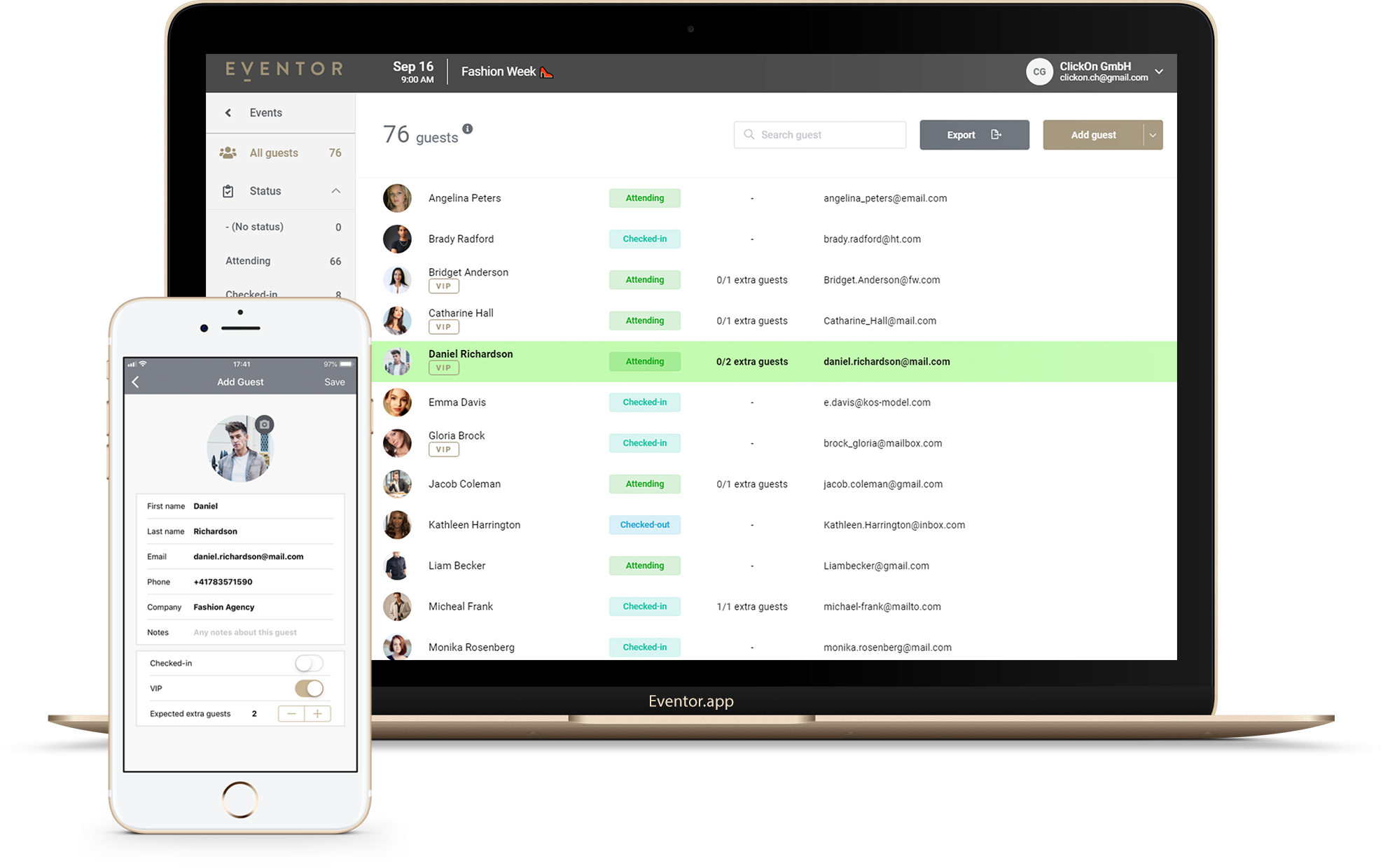
How Many Devices Can Scan at Once? Running Multi-Device Check-in with a Team
Two entrances, five hostesses, one guest list. How many phones and iPads can check in guests at the same time in Eventor, how to invite door staff safely, and how to lay out the entrance.
· 4 min read
 Guides
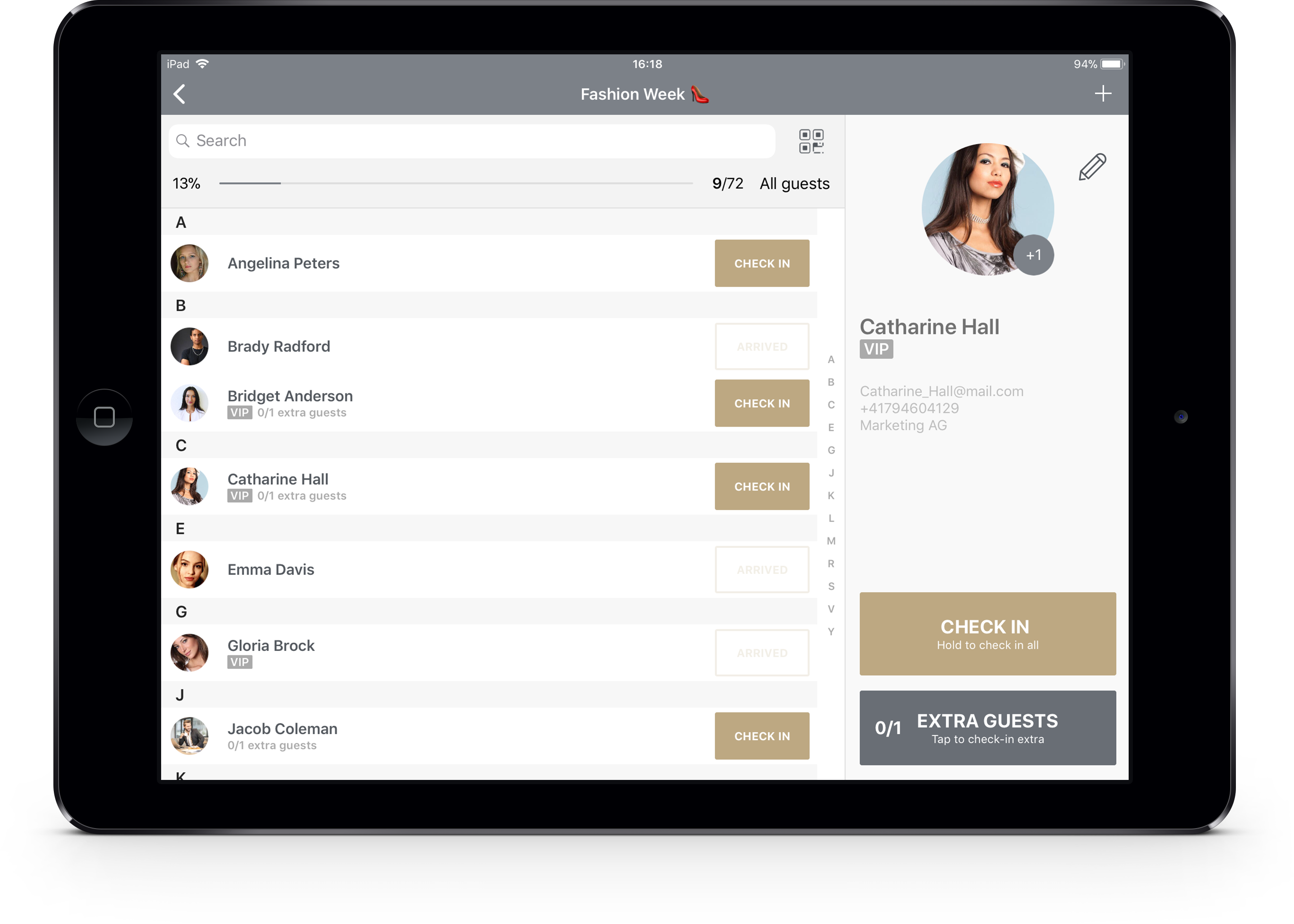
How to Check In Guests with Your Phone or iPad (Complete Guide)
Replace the printed guest list: set up the Eventor app on iPhone, iPad or Android, search or scan guests at the door, handle plus-ones and walk-ins, and export who actually came.
· 4 min read
 Guides
How to Import an Excel or CSV Guest List into Eventor (and Fix the 5 Things That Break It)
Drag-and-drop import, automatic column matching, the two mandatory columns, adding guests later, replacing a whole list, and the five spreadsheet mistakes that cause failed imports.
· 4 min read