
How Many Devices Can Scan at Once? Running Multi-Device Check-in with a Team
Two entrances, five hostesses, one guest list. How many phones and iPads can check in guests at the same time in Eventor, how to invite door staff safely, and how to lay out the entrance.
Eventor team4 min read
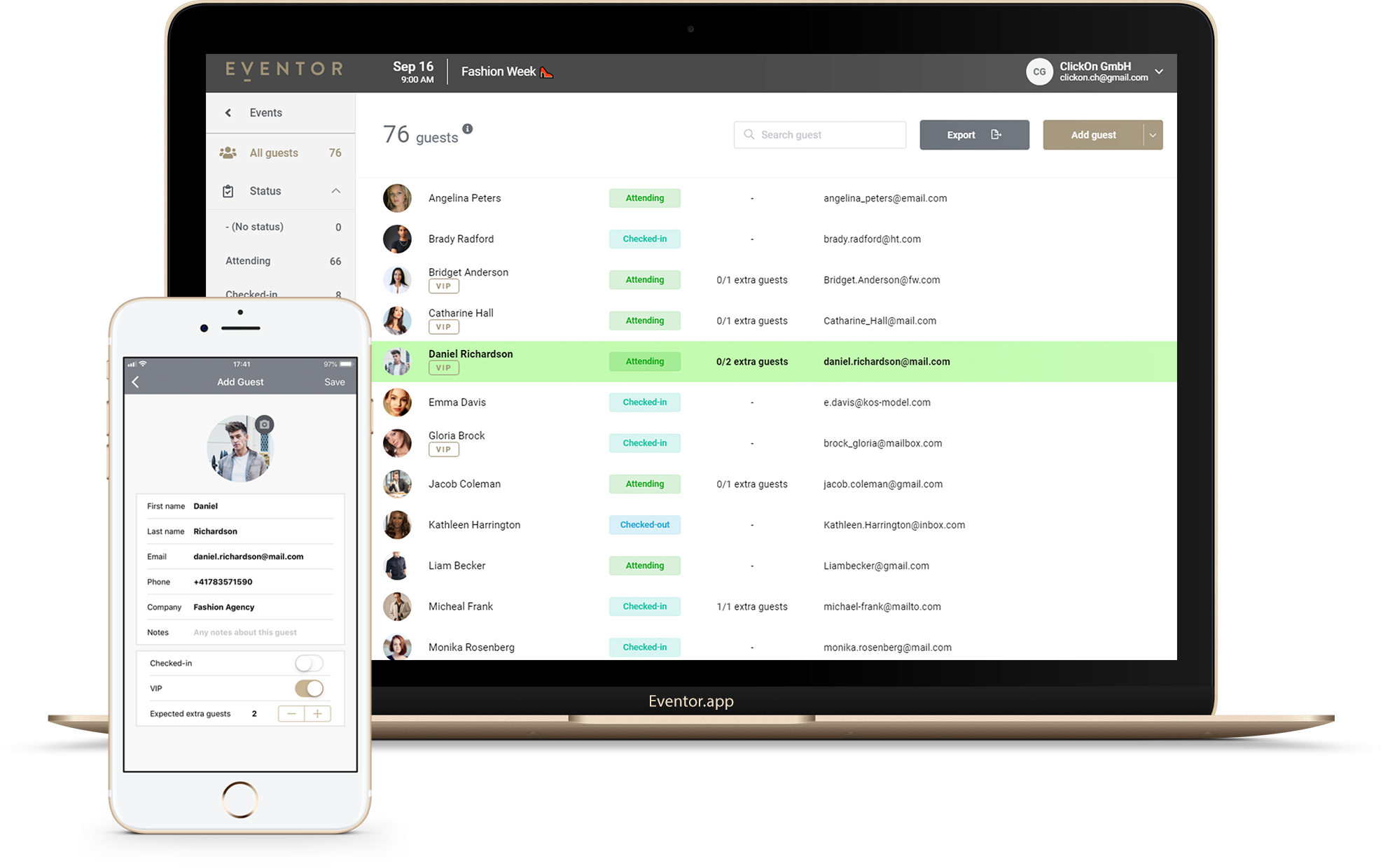
“Can your app span multiple devices, for example if we have two check-in locations?” is one of the most common questions we get before an event. Short answer: yes, that is exactly what Eventor is built for. Every phone and tablet on your event shares one live guest list, and a check-in on one device is reflected on the others within about a second.
This guide covers the limits, how to set the devices up, and how experienced organizers lay out an entrance with several scanners.
How many devices per event
The device limit depends on the package of the event, not on your account:
| Package | Guests per event | Check-in devices at the same time | Team members |
|---|---|---|---|
| Free | 30 | 1 | 1 |
| Bronze | 300 | 3 | 4 |
| Silver | 800 | 10 | 12 |
| Gold | Unlimited (15,000) | Unlimited (30) | Unlimited |
A device is a phone or tablet that opens the event in the Eventor app. Signing in with the same account on two iPads counts as two devices. The web dashboard on a laptop does not count.
If you upgrade an event, the new device limit applies immediately; you only pay the difference. See pricing.
Rule of thumb: one device per 150 guests arriving in a 30-minute window when you scan QR codes, one per 80 to 100 guests when hostesses search by name. Add one spare device for VIP escorts or walk-ins.
Setting up your door team
You have two options, and you can mix them.
Option A: your own account on every device
Sign in with your credentials on each phone. Fast, and fine when you personally hand out the devices and collect them afterwards. Every device has full rights to the list.
Option B: invite team members with roles
Go to Team in the web dashboard and invite each person by e-mail. Pick a role:
- Guest check-in / check-out only: can check guests in and out, nothing else. Give this to hostesses and agency staff.
- Promoter: can add their own guests up to a quota you set. Ideal for nightlife and for partners who bring their own list.
- Manager: full access to guests, import and export, but cannot change event settings or upgrade.
- Owner: you.
The number of team members you can invite follows the package: 4 on Bronze, 12 on Silver, unlimited on Gold. Invited members see the shared event in the app under Teams you’re part of, on iPhone, iPad and Android alike. Remove a member after the event and their access is gone.
New team members receive one e-mail with their sign-in details and links to the apps. No training call needed.
Laying out the entrance
Two entrances, one list. Put devices at both doors. Because the list is shared, a guest who tries both entrances is caught by the already checked in message.
Fast lane for QR codes. If you e-mailed QR codes (here is how), dedicate at least one device to scanning only. Scanning is roughly three times faster than searching by name, and the queue for people who “have the e-mail somewhere” moves to the name-search lane.
VIP host. One device set to the VIP filter shows only VIPs and who has arrived. Turn on push notifications and the host’s phone buzzes when a VIP is checked in at any door.
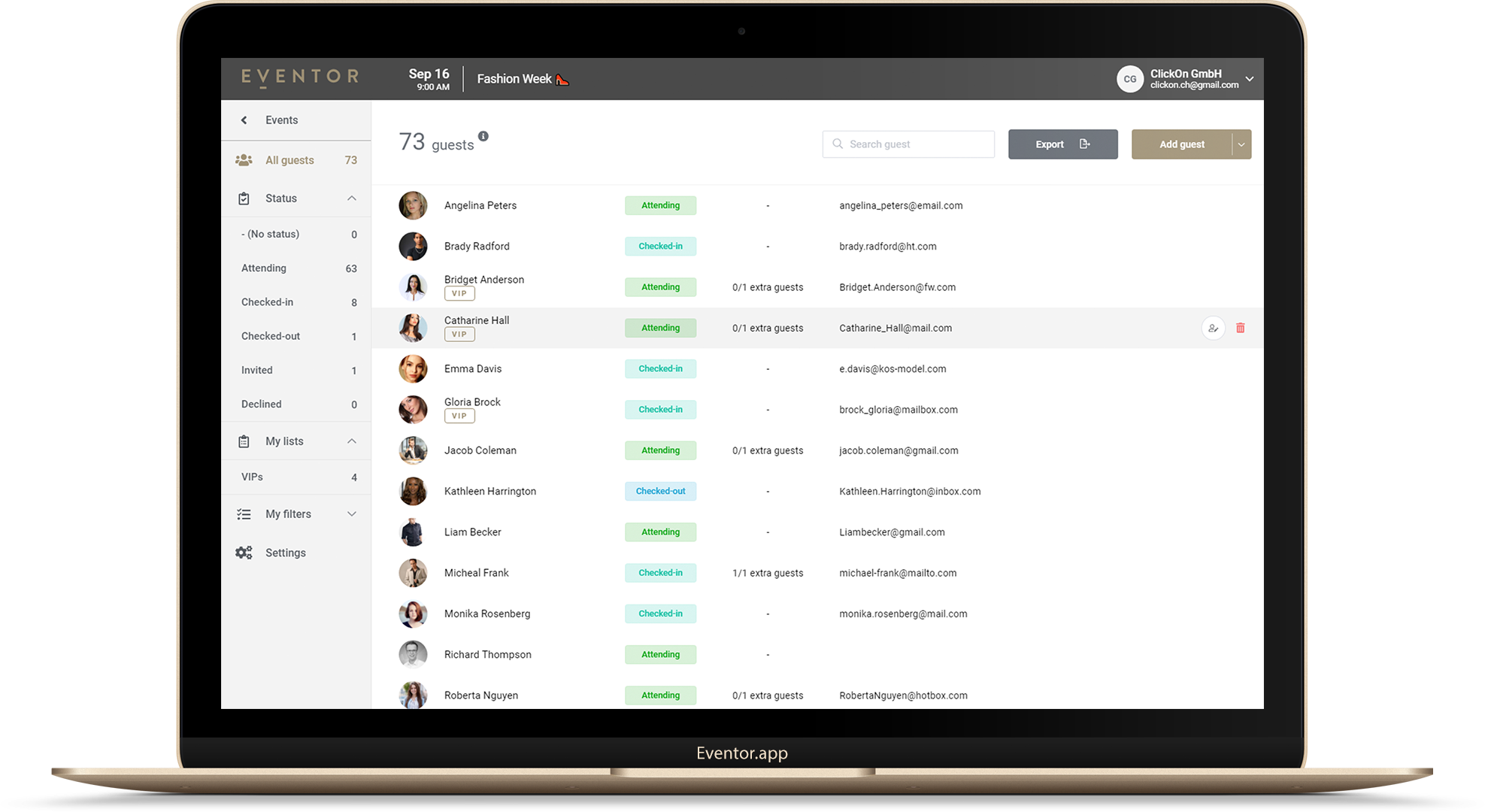
Back office. The organizer watches the live counter in the web dashboard: how many arrived, how many VIPs, how many plus-ones. No need to radio the door.
What happens when the Wi-Fi goes
Every device keeps a local copy of the list. If the connection drops, staff keep checking guests in and the app synchronizes as soon as it is back. Two offline devices do not see each other’s check-ins until then, so keep a phone hotspot in your pocket for long outages. Full details: Does event check-in work offline?
Before doors open: a five-minute check
- Every device has the app installed, is signed in and has opened the event once while online.
- The device count is within the event’s limit (the event card shows the package).
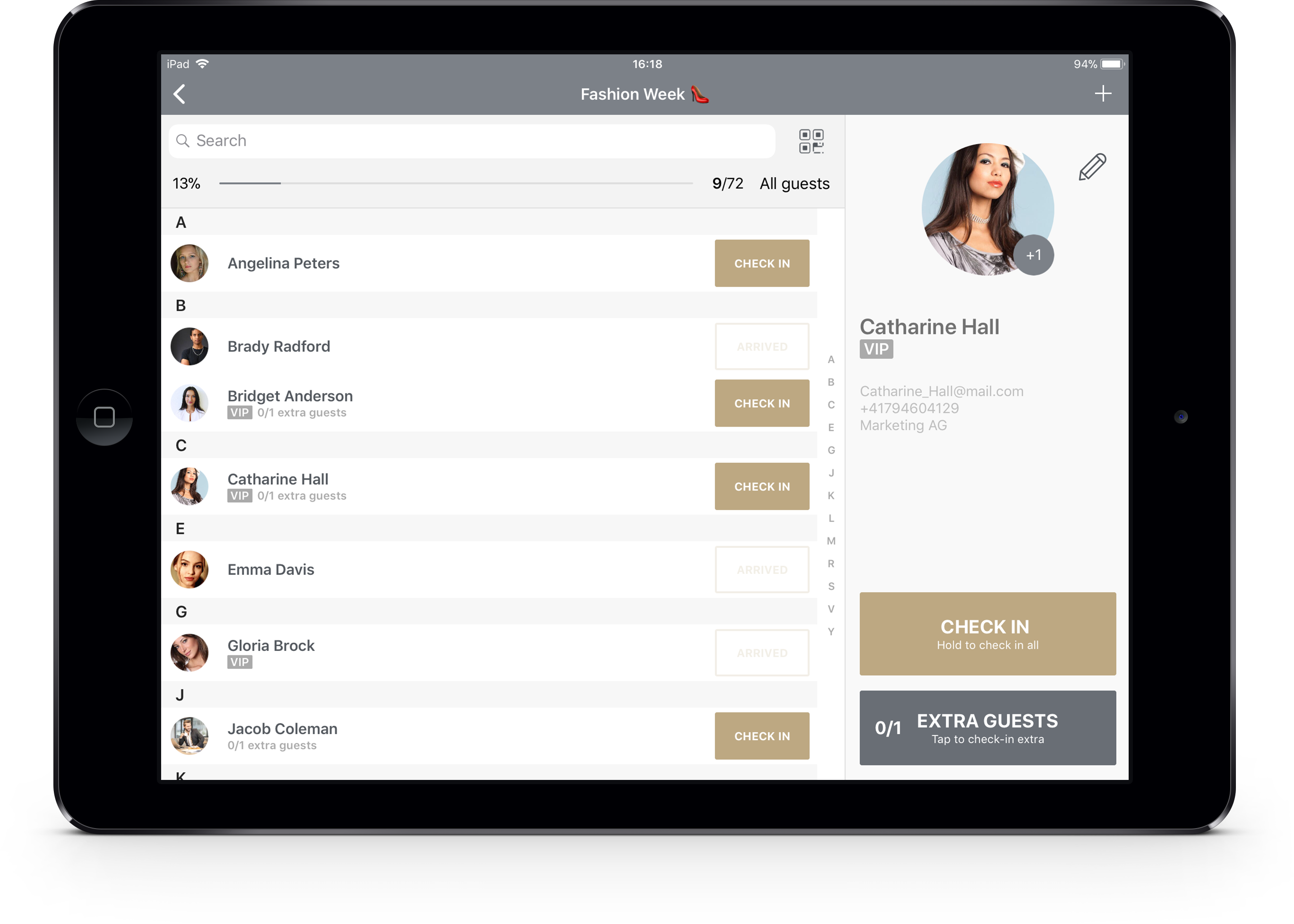
- Each hostess knows the two gestures: tap to check in, long-press to check in the guest plus all their extras.
- Screen auto-lock is off, chargers are at the desk.
- The scanner works: scan one test QR code and reset the check-in afterwards.
Frequently asked questions
Do I need special scanners? No. The camera of any iPhone, iPad or Android device is the scanner. No Bluetooth guns, no rentals.
Can staff see the whole guest list? With the check-in only role they can search and check in, which requires seeing names. They cannot export, edit or delete guests, and they cannot see other events on your account.
Can I use a device for two events on the same evening? Yes. Switch events in the app. The device counts once per event it opens.
Do the limits reset per day for a multi-day event? Limits are per event. If day two has a different audience, either create a second event or use check-out mode to reset attendance overnight.
Try it with your own team first: Eventor is free for events up to 30 guests.
Try it yourself
Run your next check-in with Eventor
Free for up to 30 guests. Import Excel, invite your team, scan QR codes on iPhone, iPad and Android.
Keep reading
 Guides
How to Check In Guests with Your Phone or iPad (Complete Guide)
Replace the printed guest list: set up the Eventor app on iPhone, iPad or Android, search or scan guests at the door, handle plus-ones and walk-ins, and export who actually came.
· 4 min read
 Guides
Offline Check-in Explained: How Sync Works, What Breaks It, and How to Prepare Your Devices
The Eventor apps keep checking guests in when the venue connection drops. That only works if every device was synced before the doors opened. This is how offline sync works, the two mistakes that lose data, and the checklist that prevents them.
· 7 min read
 Guides
How to Import an Excel or CSV Guest List into Eventor (and Fix the 5 Things That Break It)
Drag-and-drop import, automatic column matching, the two mandatory columns, adding guests later, replacing a whole list, and the five spreadsheet mistakes that cause failed imports.
· 4 min read