
Free Excel Guest List Template for Events, Parties and Weddings
Download a ready-made Excel guest list template with name, e-mail, company, plus-ones, VIP and RSVP status columns. Works in Excel, Google Sheets and Numbers, and imports into Eventor in one drag-and-drop.
Eventor team3 min read
A good guest list is boring on purpose: one row per guest, one column per fact, no merged cells, no colours that mean something only to you. This free template gives you that structure, and it happens to be exactly the format that imports into Eventor without any column mapping.
Download: Eventor guest list template (.xlsx). Opens in Microsoft Excel, Google Sheets (File → Import), Apple Numbers and LibreOffice.
What is in the template
| Column | Required | What to put in it |
|---|---|---|
First name |
Yes | Given name. One person per row. |
Last name |
Yes | Family name. Used for alphabetical sorting at the door. |
Email Address |
No | Needed if you plan to e-mail QR codes or invitations. Leave blank otherwise. |
Phone |
No | Any format; international format (+41 …) is safest. |
Company |
No | Company or organisation, shown under the name and searchable. |
Notes |
No | Free text: table number, dietary needs, “arrives late”, who invited them. Shown in the app. |
VIP |
No | TRUE marks the guest as VIP (gold tag, VIP filter, push notification on arrival). |
Total extras |
No | Number of plus-ones this guest may bring (0 to 10). |
Status |
No | Attending (default), Invited, Declined. Only Attending guests appear on the door list. |
The sample rows show the expected format. Delete them before you add your own guests.
Tips that save you time on the day
One person per row, always. “Mr and Mrs Smith” as one row means only one check-in. Split them, or use Total extras = 1 on Mr Smith if you do not know the partner’s name.
Keep first and last names in separate columns. If your source list has “Full name”, split it in Excel with Data → Text to Columns (delimiter: space) or the formulas =LEFT(A2,FIND(" ",A2)-1) and =MID(A2,FIND(" ",A2)+1,99).
Use Notes for anything that helps the hostess. Table numbers, “friend of the CEO”, “needs wheelchair access”. Notes are searchable in the app, so typing “table 12” finds everyone at that table.
Mark VIPs before the event, not at the door. The VIP filter and the arrival notification only work if the flag is set.
Statuses are for RSVP tracking. Import everyone as Invited, then update to Attending as replies come in. The door list shows only attending guests, so declines never clutter it.
Watch for duplicates. Eventor does not merge duplicates on import. Sort by e-mail or use Conditional Formatting → Highlight Duplicates before importing.
Wedding, party and corporate variants
The same template works for every event type; only the notes differ.
- Weddings: put the table number and the side (bride/groom) in
Notes, children as extras on a parent. - Corporate: fill
Company; hostesses can search by company when a guest forgot which colleague registered them. - Conferences: add the ticket type to
Notes(“Speaker”, “Press”, “Workshop A”) and filter by it in the search. - Nightlife and promoter lists: one sheet per promoter, imported by the promoter themselves with the Promoter role and a guest quota.
Importing the template into Eventor
- Create an event at events.eventor.app (free for up to 30 guests).
- Drag the file onto the event page. The preview shows the first rows and the column matching, which is automatic for this template.
- Press Import. Your guests are on every device that opens the event.
Details, including how to add more guests later or replace the list, are in How to import an Excel guest list into Eventor.
Frequently asked questions
Can I add my own columns?
Yes. Unknown columns are simply skipped during import, or you can map them to Notes. Custom fields with their own name are not supported; the notes field is the workaround.
Does it work with Google Sheets? Yes. Import the template into Sheets, fill it in, then File → Download → Microsoft Excel (.xlsx) or .csv and import that file.
What about CSV?
Save the same columns as CSV (UTF-8) if you prefer. Eventor imports .csv, .xls, .xlsx and .xlsb.
Can I export back to Excel after the event? Yes, including check-in and check-out times per guest, with a filter for checked-in guests only.
Download the template and create a free event to try it.
Try it yourself
Run your next check-in with Eventor
Free for up to 30 guests. Import Excel, invite your team, scan QR codes on iPhone, iPad and Android.
Keep reading
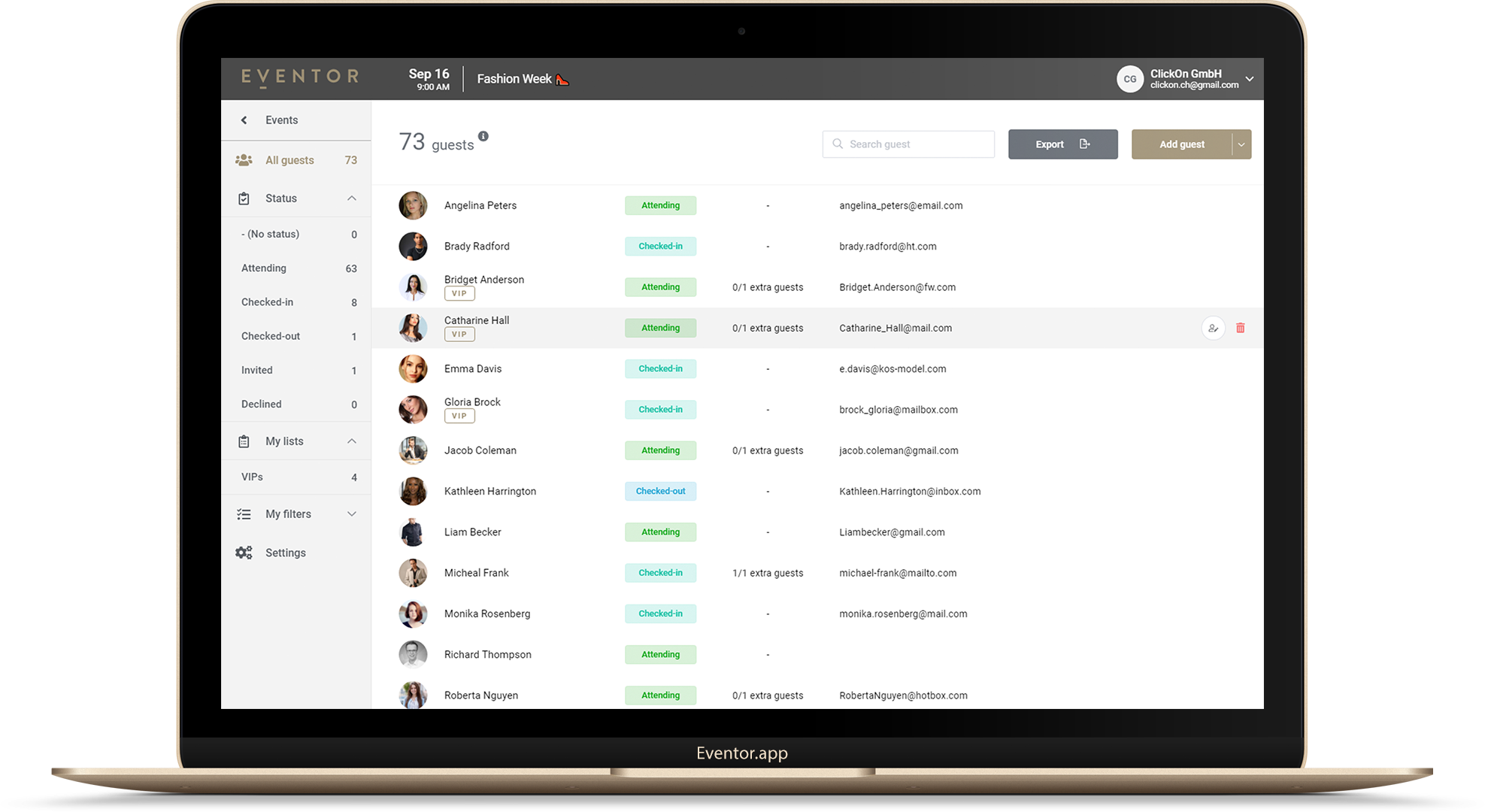 Guides
How to Import an Excel or CSV Guest List into Eventor (and Fix the 5 Things That Break It)
Drag-and-drop import, automatic column matching, the two mandatory columns, adding guests later, replacing a whole list, and the five spreadsheet mistakes that cause failed imports.
· 4 min read
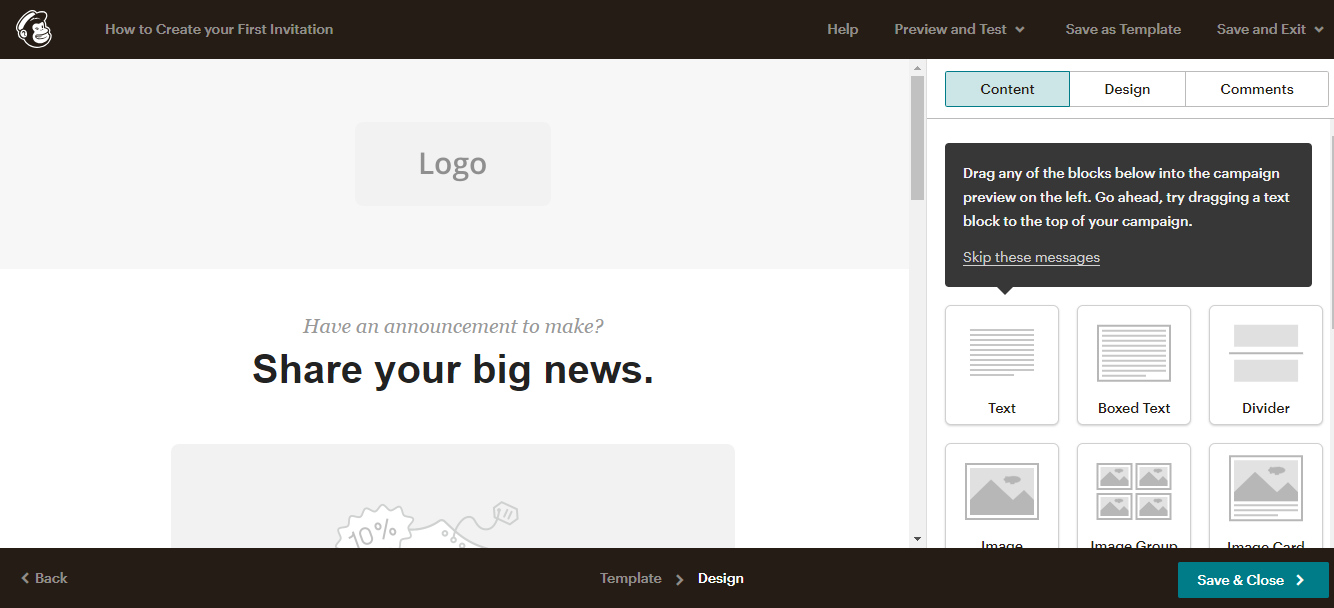 Integrations
How to Send Eventor QR Codes to Your Guests with Mailchimp
Step by step: export the per-guest QR code links from Eventor, import them into a Mailchimp audience as a merge field, and send every guest their personal QR ticket in one campaign.
· 6 min read

Sending Guest QR Codes over WhatsApp (and SMS)
For small and VIP guest lists, WhatsApp beats e-mail: higher open rates and the code is on the guest's phone at the door. How to get each guest's Eventor QR code and send it over WhatsApp or SMS.
· 3 min read