
Sending Guest QR Codes over WhatsApp (and SMS)
For small and VIP guest lists, WhatsApp beats e-mail: higher open rates and the code is on the guest's phone at the door. How to get each guest's Eventor QR code and send it over WhatsApp or SMS.
Eventor team3 min read
E-mail campaigns are the right tool for 500 guests. For a 40-person VIP dinner, a launch party or a wedding, WhatsApp is often better: the message is read within minutes, and the QR code sits in the chat when the guest reaches the door. Here is how to do it with Eventor.
Step 1: Export the QR code links
- Open the event at events.eventor.app and press Export.
- Under Advanced options tick Export QR Code data and download the Excel or CSV file.
- The column
QR Codecontains one link per guest. Opening a link shows that guest’s QR code as an image.
Eventor QR codes are always delivered as links, not as image files, so you can either send the link or download the image and send that.
Step 2a: Send the link (fastest)
Paste the guest’s link into the WhatsApp chat together with a short message:
Hi Anna, here is your personal entry code for the Summer Gala on 12 July. Open the link and show the QR code at the entrance: https://api.qrserver.com/… One code per guest, please do not forward it.
Guests tap the link, the code opens in the browser, and they can screenshot it. This takes about 15 seconds per guest.
Step 2b: Send the image (nicer)
Open the guest’s link on your computer, right-click the QR code and Save image as anna-mueller.png. Then drag the image into the WhatsApp chat. On a phone, open the link, long-press the image and choose Save, then share it from Photos.
For more than 20 guests, do the export once and use a WhatsApp Business broadcast list for the standard message, then send each image individually. Or automate it: with the CSV and a mail-merge tool (Google Sheets + a WhatsApp or SMS API such as Twilio) the link column becomes a placeholder in a templated message.
Sending by SMS
Same idea: paste the link into the text. Links from api.qrserver.com are short enough for a single SMS and open in any phone browser. SMS is the right channel for older audiences and for countries where WhatsApp is less common.
At the door
Guests show the code on their phone, in WhatsApp, in Photos or in the browser. Tap the scanner icon in the Eventor app and scan. Screen brightness matters more than anything else: ask guests to turn it up if the first scan fails.
A forwarded code is caught automatically. The second scan shows already checked in with the original guest’s name.
We can do this for you. QR code campaigns by e-mail, WhatsApp or Paperless Post are included for Gold customers and available as a service for every event. Write to support@eventor.app.
Good to know
- The code contains only the guest ID, no personal data. A screenshot is safe to store.
- If you delete and re-import a guest, they get a new ID and the old code stops working. Edit guests instead of re-importing after the codes are out.
- Prefer e-mail for big lists: Sending Eventor QR codes with Mailchimp.
- Sold tickets elsewhere? Scan those instead: Import Eventbrite attendees into Eventor.
Create a free event, add yourself as a guest, export the QR data and send yourself the code to see the whole loop in two minutes.
Try it yourself
Run your next check-in with Eventor
Free for up to 30 guests. Import Excel, invite your team, scan QR codes on iPhone, iPad and Android.
Keep reading
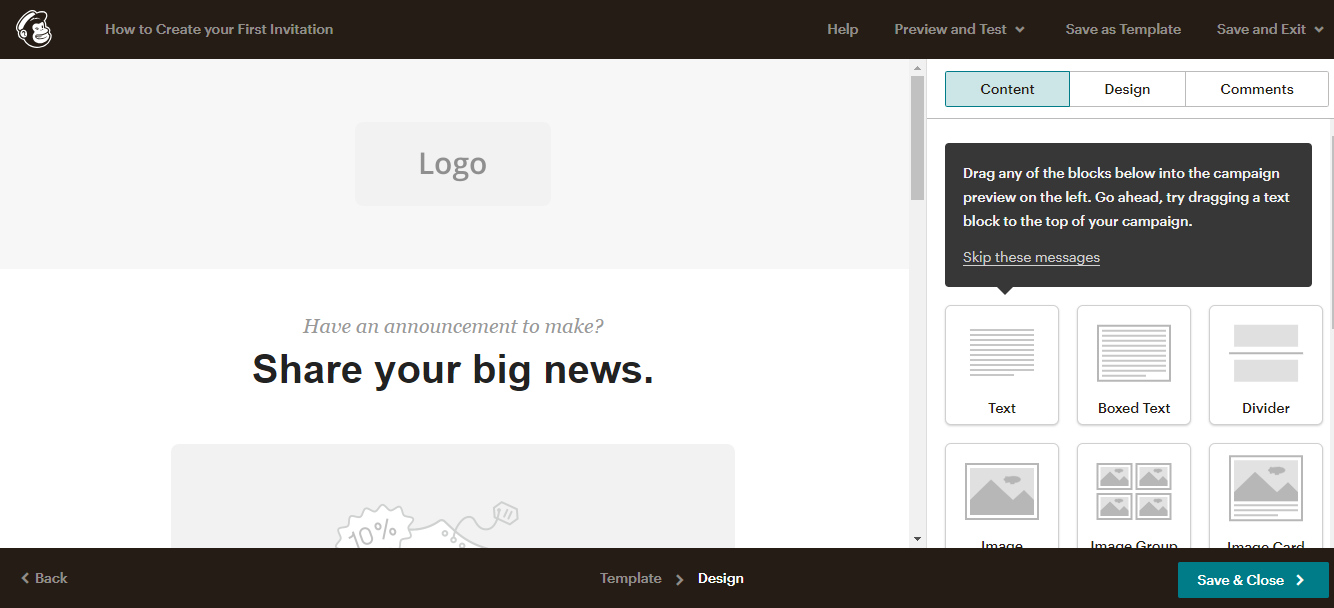 Integrations
How to Send Eventor QR Codes to Your Guests with Mailchimp
Step by step: export the per-guest QR code links from Eventor, import them into a Mailchimp audience as a merge field, and send every guest their personal QR ticket in one campaign.
· 6 min read

Import Eventbrite Attendees into Eventor and Scan Their Tickets at the Door
Sell tickets on Eventbrite, run the door with Eventor: export the attendee report, import it with the ticket barcode as the scan value, and check guests in with the Eventor app on several devices, offline if needed.
· 3 min read
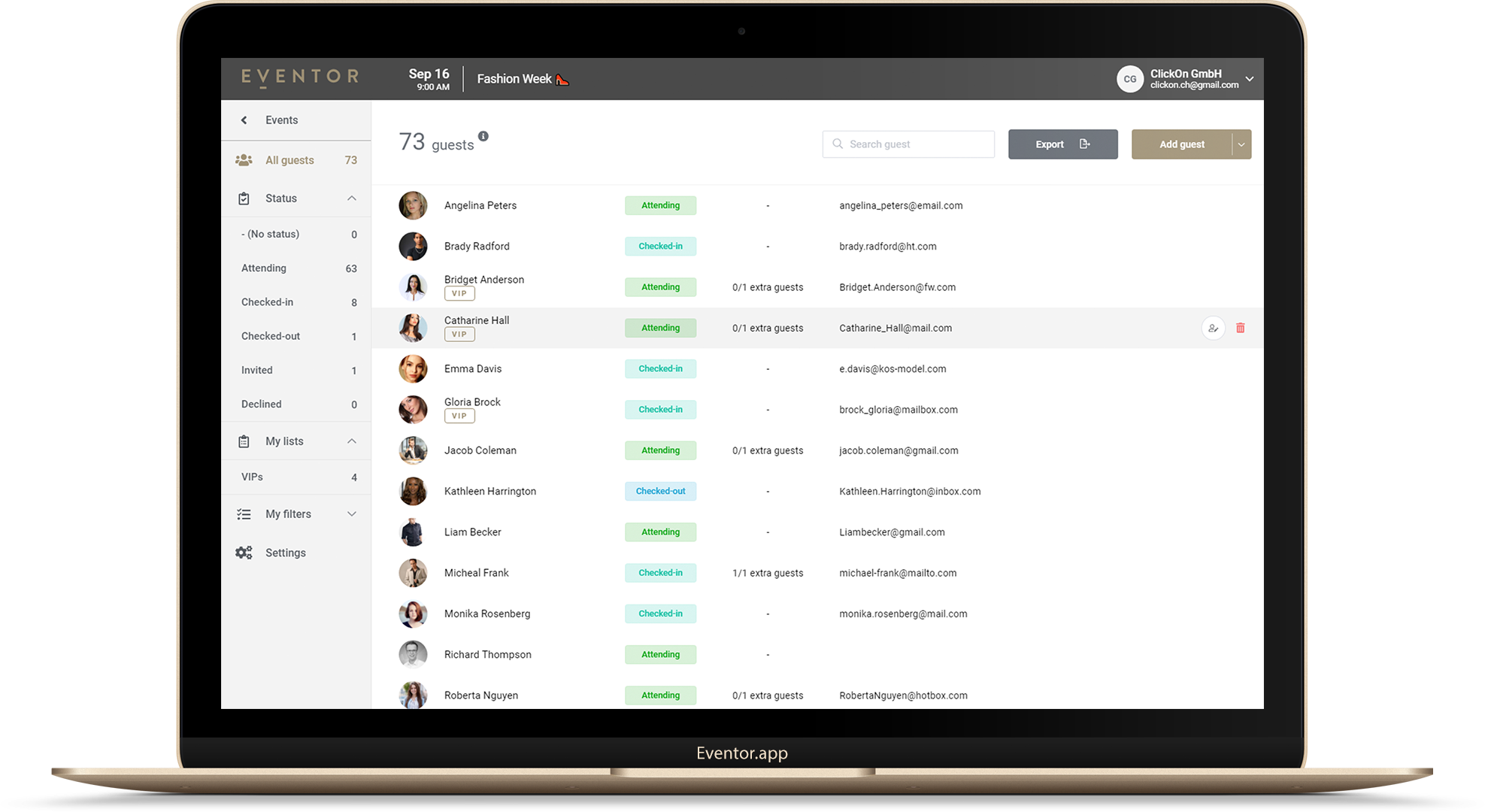 Guides
How to Import an Excel or CSV Guest List into Eventor (and Fix the 5 Things That Break It)
Drag-and-drop import, automatic column matching, the two mandatory columns, adding guests later, replacing a whole list, and the five spreadsheet mistakes that cause failed imports.
· 4 min read