
How to Import an Excel or CSV Guest List into Eventor (and Fix the 5 Things That Break It)
Drag-and-drop import, automatic column matching, the two mandatory columns, adding guests later, replacing a whole list, and the five spreadsheet mistakes that cause failed imports.
Eventor team4 min read
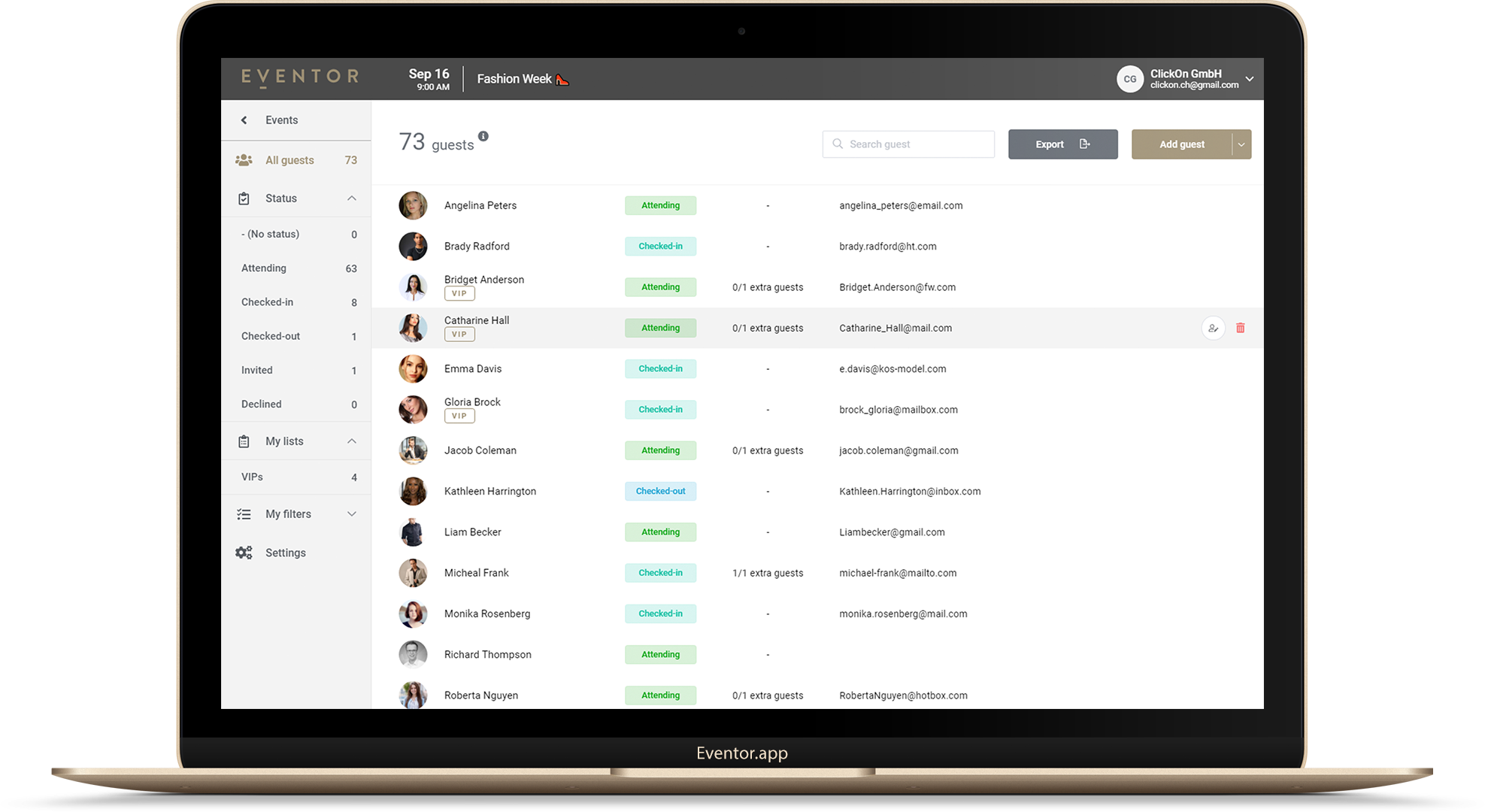
Importing the guest list is the step where most of the work happens, and the step where a messy spreadsheet turns into a messy door. This guide shows the import flow in Eventor and, more usefully, the handful of spreadsheet problems behind almost every “my import did not work” message we get.
Before you start
- Create your event at events.eventor.app. Imports happen in the web dashboard, not in the iOS or Android app.
- Have your list as
.xlsx,.xls,.xlsbor.csv. No list yet? Use the free Excel template. - Know your limit: 30 guests on a free event, 300 / 800 / unlimited on Bronze / Silver / Gold. Upgrade first if the list is bigger; the import stops at the limit.
Importing into an empty event
- Open the event and drag your file onto the page (or press Import Excel/CSV).
- Eventor shows a preview of the first rows with a dropdown above every column. Headers such as first, last/surname, e-mail, phone, company/organization, VIP, note, total extras and barcode are matched automatically.
- Fix any column that was not recognised by picking the target field, or choose Skip column.
- Make sure First name and Last name are both matched. Until they are, the Import button stays disabled. These two are the only mandatory fields.
- Optionally open Advanced options to set the status of all imported guests (default: Attending).
- Press Import. Guests appear on every device that opens the event.
Adding guests to an event that already has guests
Imports are incremental. Press the arrow next to Add guest and choose Import Excel/CSV; the flow is identical. Late RSVPs, a second promoter’s list, press accreditations: import them as separate files whenever they arrive.
Eventor does not merge duplicates. If the same person is in two files, they end up in the list twice. Deduplicate in Excel before importing (sort by e-mail, or Conditional Formatting → Highlight Duplicates), or delete the extra row in Eventor afterwards.
Replacing the whole list
Got a final version from the client? During an import open Advanced options and tick Delete the existing guests. Eventor tells you how many guests will be removed, then imports the new file. This is also the fastest way to clear an event.
Do not replace the list after you have sent QR codes: guests get new IDs and therefore new codes. Import only the new rows instead.
The five things that break imports
1. Full name in one column
The two mandatory fields are first name and last name. Split a “Name” column in Excel with Data → Text to Columns, delimiter space, or with formulas:
=LEFT(A2, FIND(" ", A2) - 1)          → first name
=MID(A2, FIND(" ", A2) + 1, 99)       → last name
Double-barrelled names need a quick manual check afterwards.
2. The header is not in row 1
Titles, logos or empty rows above the header confuse the preview. Delete everything above the header row so row 1 contains the column names.
3. Merged cells and multiple sheets
Unmerge all cells (Home → Merge & Center → Unmerge) and make sure the guests are on the first sheet of the workbook, or copy them to a fresh file.
4. Numbers that are not numbers
Total extras must be a plain number (0 to 10). “+1” or “two” is ignored. Phone numbers are normalised automatically; values with fewer than 4 digits are treated as labels and dropped.
5. Wrong file encoding in CSV
If accents come out as é, save the CSV as UTF-8 (in Excel: Save As → CSV UTF-8). Or just save as .xlsx, which has no encoding problem.
Column reference
| Target field | Typical headers that auto-match | Notes |
|---|---|---|
| First name | first, first name, given name | mandatory |
| Last name | last, last name, surname | mandatory |
| email, e-mail, @ | needed for QR e-mails | |
| Phone | phone, mobile, tel | normalised to international format |
| Company | company, organization, organisation, firm | shown under the name |
| Job title | title, position, job | searchable |
| Notes | note, notes, description, comment | table numbers, dietary needs |
| VIP | vip | TRUE / FALSE, yes / no, 1 / 0 |
| Total extras | total extras, extras, plus one | 0 to 10 |
| Status | status | Attending, Invited, Declined |
| Barcode value | barcode, qr code, ticket id | for scanning tickets from another system |
After the import
- Open the event on a phone and search for a few names to see the data as the hostess will.
- Mark or check VIPs and plus-ones.
- Invite the door team and, if you want scanning, send the QR codes.
Importing is free to try: create an event with up to 30 guests and drop your file in.
Try it yourself
Run your next check-in with Eventor
Free for up to 30 guests. Import Excel, invite your team, scan QR codes on iPhone, iPad and Android.
Keep reading

Import Eventbrite Attendees into Eventor and Scan Their Tickets at the Door
Sell tickets on Eventbrite, run the door with Eventor: export the attendee report, import it with the ticket barcode as the scan value, and check guests in with the Eventor app on several devices, offline if needed.
· 3 min read
 Guides
How to Check In Guests with Your Phone or iPad (Complete Guide)
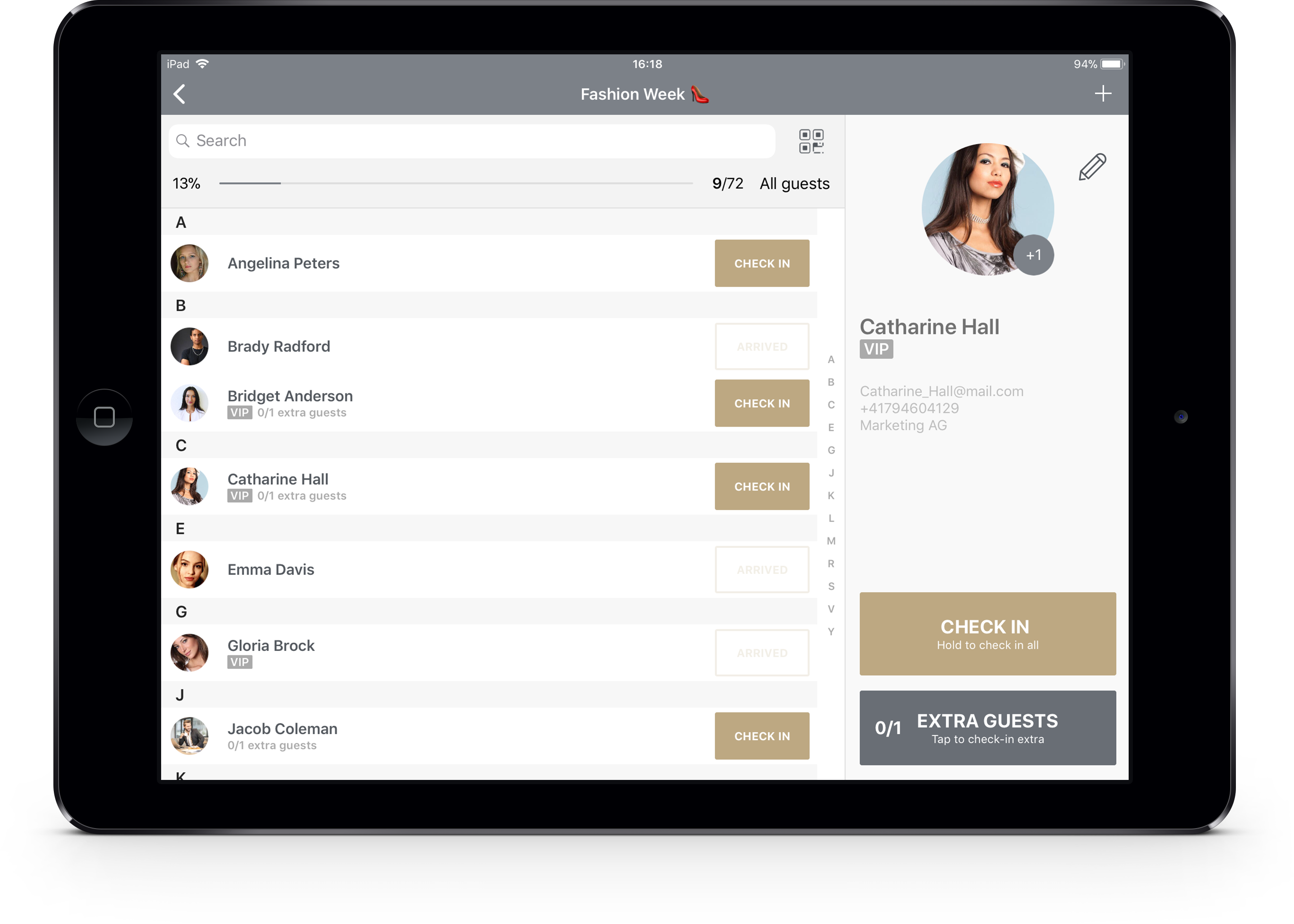
Replace the printed guest list: set up the Eventor app on iPhone, iPad or Android, search or scan guests at the door, handle plus-ones and walk-ins, and export who actually came.
· 4 min read
Free Excel Guest List Template for Events, Parties and Weddings
Download a ready-made Excel guest list template with name, e-mail, company, plus-ones, VIP and RSVP status columns. Works in Excel, Google Sheets and Numbers, and imports into Eventor in one drag-and-drop.
· 3 min read